Mini PCs are no longer niche. For Canadian small businesses that operate in tight spaces, need predictable operating costs, and want modern manageability without the bulk of traditional towers, today’s compact systems deliver:
- Space efficiency (VESA mountable behind displays),
- Lower idle power and heat for long office days,
- Modern connectivity (USB4/Thunderbolt, Wi-Fi 6/6E, 2.5GbE on some models),
- Security baselines suitable for regulated data (device encryption, secure boot), and
- Remote manageability options that reduce on-site interventions.
This article explains why—and how—to evaluate a mini PC for Canadian SMB use, with an evidence-based checklist and a neutral data insertion of one representative model.
Why Mini PC Matters in Canada
Small business is the Canadian economy’s backbone. In 2023, firms with 1–19 employees represented 86.7% of all employer businesses and employed ~5.2 million people; in 2024, official federal reporting shows ~98% of businesses are “small.” These organizations prize reliability, value, and manageable IT.
Canadian SMBs run lean—often with a single IT generalist or a managed service provider supporting multiple locations. In such environments, reliability, security, and clean workspaces matter as much as raw performance. A workstation that mounts behind a monitor, powers two displays through a single cable, and runs quietly can simplify counters, reception desks, exam rooms, tutoring stations, and mobile demo kits.
The compact advantage in daily workflows
- Front-of-house clarity: Hidden PCs reduce visual clutter and cable tangles at point-of-sale or reception counters.
- Meeting and training rooms: A small, quiet unit on a display cart turns any room into a ready-to-use lab.
- Clinics and consulting suites: Less heat and noise helps preserve a calm environment.
- Remote kiosks and pop-ups: Mini PCs can live in cabinets or under counters; out-of-band manageability on some platforms enables remote power/reset and diagnostics.
What Exactly Is a “Mini PC”?
A Mini PC is a small-form-factor desktop that uses energy-efficient laptop-class CPUs or low-power desktop silicon in a palm-sized chassis. Unlike thin clients, mini PCs run full desktop operating systems and connect to one or more external displays, often through USB-C/USB4 or HDMI/DisplayPort. The ENERGY STAR spec scopes such systems as computers with CPU, input, and external display support—covering desktops and integrated designs.
The Business Case: Five Evidence-Backed Advantages
1) Space Efficiency & Clean Workstations
- VESA mountability: Many minis ship with VESA MIS-D plates (75×75 or 100×100 mm), letting you attach the PC to the monitor’s rear—freeing the desk and reducing cable clutter.
- Quiet & discreet: Smaller fans and SSD-only configs keep acoustic and visual distraction low—useful for front-of-house, clinics, or studios.
2) Lower Energy Footprint
- Idle and active efficiency: ENERGY STAR criteria push manufacturers to optimize low-load power where PCs spend most of their time. That reduces waste heat, helping tiny rooms stay comfortable and cutting HVAC load during Canadian summers.
3) Modern Connectivity Without the Bulk
- Single-cable desks: USB4/Thunderbolt consolidates power delivery, high-speed data, and multiple displays through one cable to a dock—ideal for minimalist counters or hot-desks.
- Enterprise-grade Wi-Fi: Wi-Fi 6/6E adds capacity and, for 6E, mandates WPA3 in the 6-GHz band, improving security posture for POS, patient intake, or guest areas.
4) Security & Compliance Features You Actually Use
- Device encryption: BitLocker protects at-rest data on lost or stolen endpoints, important for PHI/PII and privacy regulations.
- Windows 11 for business: Modern protections (e.g., Smart App Control, TPM 2.0 requirements, secure boot) and policy controls help standardize fleets across branches.
5) Real IT Manageability for Small Teams
- Out-of-band control: Intel® vPro/AMT enables remote power on/off, KVM, and firmware-level access even when OS is unresponsive.
- Cross-vendor options: AMD PRO/DASH offers similar fleet features, including wireless manageability on supported hardware—handy for dispersed pop-ups or kiosks.
Where Mini PCs Shine for Canadian SMBs
- Point of Sale & Front Counter: Hide the PC behind the display; use a USB-C dock for receipt printers, barcode scanners, and card readers.
- Healthcare & Clinics: Quiet, compact endpoints reduce clutter in exam rooms; BitLocker plus role-based access aid privacy compliance.
- Education & Training Labs: Dense seating needs small footprints; Wi-Fi 6/6E handles many clients per room.
- Creative & Content Teams: USB4/Thunderbolt offloads to fast external NVMe enclosures and high-bandwidth displays.
- Field/Pop-Up Retail & Kiosks: Mini PCs mount inside cabinets or under counters; vPro/DASH enables remote resets without site visits.
Data Table — Mini PCs vs Traditional Towers
Prices/specs are illustrative and non-promotional. If you provide internal SKUs, I’ll replace the “Generic Mini PC” row(s) with your data references.
(Internal references, if added, will appear as: “Source: Internal Product Data, Updated: YYYY-MM” only in the table/FAQ.)
| Category | Generic Mini PC | Traditional Tower Desktop |
|---|---|---|
| Typical Footprint | Palm-size; VESA 75×75 / 100×100 mount capable | Floor or desk space; rarely VESA-mountable |
| Cabling & Docking | USB4/Thunderbolt one-cable docking; front USB-C | Multiple cables; docking less standardized |
| Wireless | Wi-Fi 6 or 6E, WPA3 on 6E | Varies; often Wi-Fi 5/6 add-in |
| Security Baseline | BitLocker, Secure Boot, TPM 2.0 with Windows 11 Pro | Same possible, but older towers may lack modern firmware defaults |
| Manageability | Intel vPro/AMT or AMD PRO/DASH on supported SKUs | Enterprise features on select models; older fleets inconsistent |
| Energy Posture | Often designed to meet ENERGY STAR; efficient at idle/office loads | Wider ranges; gaming/workstation towers can consume more at idle |
| Noise/Heat | Generally low with SSD-only configs | Higher airflow requirements in larger chassis |
Standards & references: VESA MIS-D; USB-IF USB4/Thunderbolt; Wi-Fi Alliance/Cisco on 6E & WPA3; Microsoft BitLocker; ENERGY STAR Computers.
How to Choose a Mini PC for Your Business
Step 1 — Define the Workload
Start by matching the PC’s performance to daily tasks.
- Office, web, and POS systems: any modern 4- to 8-core low-power CPU with 16 GB RAM and an NVMe SSD is more than enough.
- Media or light creative work: choose a model with dual-channel RAM, USB4 or Thunderbolt for fast external drives, and dual-display output.
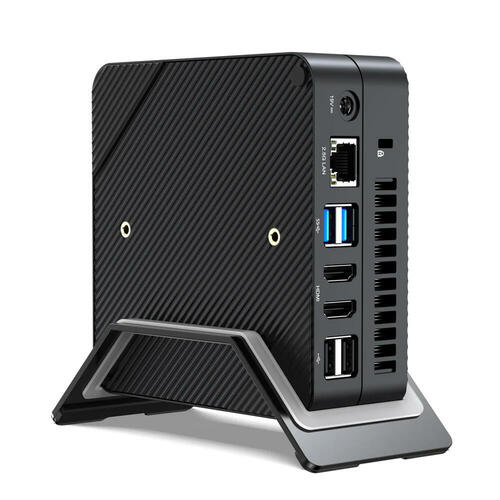
For example, the Minisforum UM773 Lite Mini PC fits perfectly in this tier—it runs an AMD Ryzen™ 7 7735HS processor (8 cores / 16 threads, 3.2 GHz to 4.75 GHz) with integrated Radeon™ 680M graphics. Its 32 GB RAM and 1 TB SSD handle office apps, video calls, and creative tools smoothly, while the compact 128 × 128 × 48.2 mm design saves desk space.
Step 2 — Map the Ports
Ensure your mini PC supports both modern and legacy I/O.
- USB-C / USB4 / Thunderbolt for docks, external GPUs, and high-speed storage.
- Legacy I/O like USB-A or serial (via adapters) for receipt printers and POS peripherals.
The UM773 Lite includes a high-speed USB4 port capable of up to 40 Gbps transfer and 8K @ 60 Hz display output—ideal for docking or connecting dual monitors.
Step 3 — Plan Mounting & Ergonomics
Most business setups benefit from VESA mount compatibility (75 × 75 mm or 100 × 100 mm).
If your display lacks rear clearance, add a VESA PC mount to keep the workspace tidy. Compact systems like the UM773 Lite are light enough for monitor-arm mounting.
Step 4 — Network & Security Baseline
- Look for Wi-Fi 6 or 6E with WPA3 security for dense office environments.
- Choose Windows 11 Pro for BitLocker encryption and centralized policy control.
Step 5 — Fleet Management
In multi-site or small IT teams, Intel vPro/AMT or AMD PRO/DASH features enable remote power control and KVM access for maintenance without onsite visits.
Step 6 — Lifecycle & Energy
Select models with ENERGY STAR certification and NVMe SSDs for fast boot and low power use.
The UM773 Lite’s NVMe storage supports modern power-management standards and its efficient liquid-metal cooling keeps thermals and noise under control—important for meeting-room and front-desk deployments.
Deployment Patterns
- All-in-One Desk Mount: Mini PC VESA-mounted behind a 24–27″ monitor, USB-C to a small dock, keyboard/mouse wireless dongle, and Ethernet to switch.
- POS Counter: Under-counter bracket; USB-C hub to scanner, receipt printer, payment terminal; Wi-Fi 6/6E as failover.
- Room-Rolling Kit: Mini PC + monitor on a cart for training or clinic rotation; Thunderbolt dock connects displays and storage with one cable.
- Headless Node: Use vPro/AMT or DASH for lights-out management in kiosks; remote power-cycle and KVM when OS is down.
Cost & Risk Considerations
- Upfront vs TCO: Minis can cost similar to business towers but reduce ongoing energy and space costs, plus potential truck rolls through out-of-band manageability.
- Thermals: Ensure adequate ventilation if mounting in cabinets; follow vendor airflow guidance.
- Upgradability: Most minis accept RAM/SSD upgrades; plan external storage via USB4/Thunderbolt for large media.
- Compliance: Enable BitLocker and baseline policies during imaging; document recovery keys.
FAQ
Q1. Can mini PCs drive dual monitors at 4K?
A: Many support two or more displays via USB-C/USB4/Thunderbolt or HDMI/DisplayPort; verify GPU/port specs and dock capabilities.
Q2. Are mini PCs energy efficient enough to matter on bills?
A: PCs spend much time at idle/low load, where ENERGY STAR criteria push down consumption. Over a fleet, reduced idle draw and heat meaningfully affect costs.
Q3. How do we secure data on a lost or stolen mini PC?
A: Use BitLocker full-disk encryption and store recovery keys in a managed directory or M365/Entra environment.
Q4. We have nontechnical managers in remote sites. Can IT still help?
A: With Intel vPro/AMT or AMD PRO/DASH, IT can power on, remote-KVM, and remediate systems even when the OS isn’t responsive.
Q5. Is Wi-Fi 6E really more secure?
A: Yes. For 6-GHz operation, WPA3 is mandatory for certified devices—strengthening wireless security baselines.
Q6. What’s the difference between USB-C, USB4, and Thunderbolt on minis?
A: USB-C is the connector; USB4 is a protocol that can carry multiple data/display streams at high bandwidth; Thunderbolt stacks further capabilities and high performance—often enabling one-cable docking.
References
- Innovation, Science and Economic Development (ISED) — Key Small Business Statistics 2024 — Accessed: 2025-11-25. ISED Canada
- Statistics Canada — Small Business Analysis (2024) — Accessed: 2025-11-25. Statistics Canada
- ENERGY STAR — Computers (Program & Finder); Computers Spec v9 (Final Draft) — Accessed: 2025-11-25. ENERGY STAR+1
- Microsoft — Compare Windows 11 Business Editions; BitLocker Overview — Accessed: 2025-11-25. Microsoft+1
- USB-IF — USB4 Overview — Accessed: 2025-11-25. USB Implementers Forum
- Intel — vPro / Active Management Technology (AMT) Docs — Accessed: 2025-11-25. Intel+1
- AMD — PRO / Manageability Tools — Accessed: 2025-11-25. AMD+1
- Wi-Fi Alliance/Cisco — Wi-Fi 6/6E & WPA3 Overview — Accessed: 2025-11-25. Cisco
- VESA MIS-D 75/100 Mounting Dimensions — Accessed: 2025-11-25. Ergotron+1