It happens all the time: you connect a “4K-ready” TV or monitor to a new streaming box or gaming console, and the screen either shows 1080p, flickers, or randomly cuts out.
Most people blame the device — but in 2025, the real culprit is still often the HDMI cable.
That’s because not all HDMI cables are equal.
Even though older cables can carry video, they may not handle the full 18–48 Gbps bandwidth that modern 4K and 8K formats demand.
HDMI 4K Troubleshooting Flow
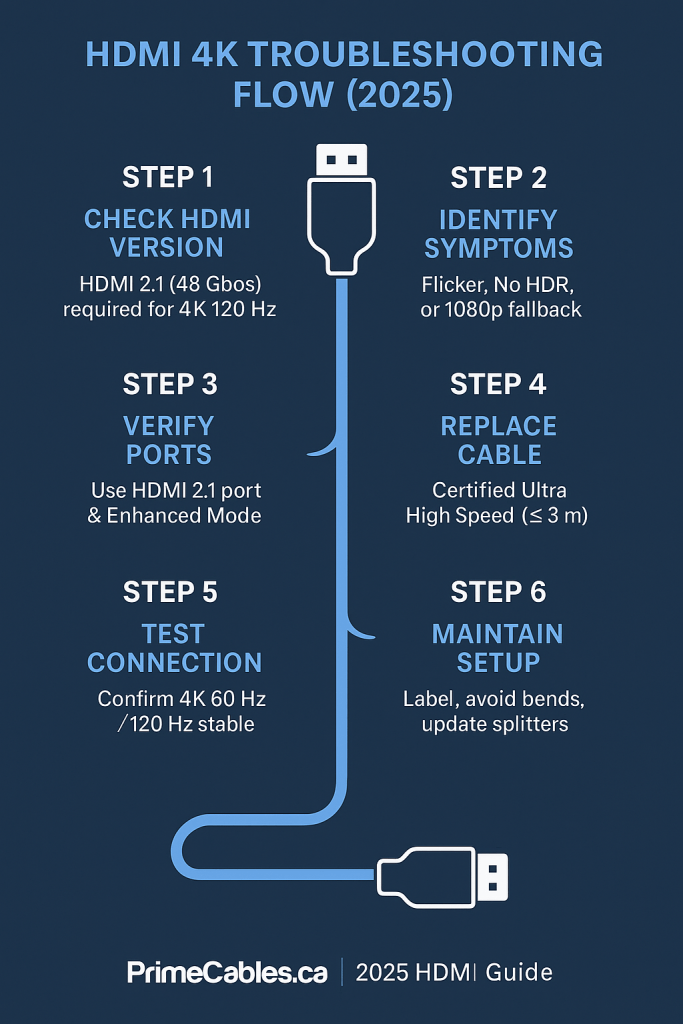
Step 1 – Check the Real HDMI Standard
High Speed HDMI

Premium High Speed HDMI

Ultra High Speed HDMI

| Label on Cable | Official Standard | Max Bandwidth | Typical Use |
|---|---|---|---|
| High Speed HDMI | HDMI 1.4 | 10.2 Gbps | 1080p / 4K 30 Hz |
| Premium High Speed HDMI | HDMI 2.0 | 18 Gbps | 4K 60 Hz HDR |
| Ultra High Speed HDMI | HDMI 2.1 | 48 Gbps | 4K 120 Hz / 8K 60 Hz |
Step 2 – Recognize the Symptoms of an Under-spec Cable
- TV shows “No Signal” or randomly flickers at 4K 60 Hz
- Display reverts to 1080p even though both devices support 4K
- HDR option is grayed-out in settings
- Game consoles (PS5, Xbox Series X) fail to enable 120 Hz mode
If you see any of these, your HDMI cable likely can’t sustain the full signal bandwidth required by newer HDMI 2.1 chipsets.
Step 3 – Confirm Device and Port Compatibility
- Check both ports. Not every HDMI port on a TV supports full 4K 120 Hz. Use the port labeled HDMI 2.1 or 4K 60 Hz ARC/eARC.
- Enable Enhanced Format. Many 4K TVs (LG, Sony, Samsung) need you to enable Enhanced HDMI Mode in the picture settings.
- Keep cable length under 10 ft (3 m) if possible — longer runs degrade signal strength unless it’s a certified active cable.
Step 4 – Upgrade to the Correct Cable Type
For most 2025 setups — streaming boxes, PS5, Xbox Series X, Apple TV 4K, or 8K media players — you should be using a 48 Gbps Ultra High Speed HDMI 2.1 cable.
A dual-layer braided or ultra-flex design rated for 8K 60 Hz / 4K 120 Hz ensures full support for HDR10+, Dolby Vision, and variable refresh rate (VRR).
Quick checklist for a 4K-ready cable
- Certified “Ultra High Speed HDMI” hologram on packaging
- Supports bandwidth ≥ 48 Gbps
- Backward-compatible with HDMI 2.0 devices
- eARC and VRR compliant
(Any comparable 2.1-certified cable from a trusted manufacturer meets these specs.)
Step 5 – Test the Connection Again
- Plug the new HDMI 2.1 cable into the TV’s HDMI 2.1 port.
- Set the source device to output 4K 60 Hz HDR.
- Verify the resolution in the TV info panel.
- If available, run the HDMI cable test from your console’s settings (both Xbox and PS5 include this feature).
When everything is correct, the image should display crisp 4K detail with stable HDR brightness and zero flicker.
Step 6 – Prevent Future 4K Connection Problems
- Label your cables (HDMI 2.0, 2.1, etc.) to avoid confusion later.
- Avoid bending the connector too sharply behind wall mounts.
- If running cable through walls, use CL2/CL3-rated in-wall cables.
- Replace any HDMI switch or splitter that’s not rated for the same bandwidth as your cable.
TL;DR – The Quick Fix
If your 4K signal looks wrong, the issue is usually bandwidth.
Switch to an HDMI 2.1 48 Gbps cable, confirm the TV’s enhanced HDMI setting, and plug into the correct 4K port.
You’ll instantly restore proper 4K HDR playback across all 2025 devices.
FAQ – HDMI 4K Troubleshooting (2025)
1. Why doesn’t my “4K HDMI cable” show true 4K?
Because many older “4K-labeled” cables were built to HDMI 1.4 or 2.0 standards, limited to 10–18 Gbps. True 4K 60 Hz HDR requires a certified HDMI 2.1 cable supporting 48 Gbps bandwidth.
2. Do I need to replace all my HDMI cables for 4K 120 Hz?
Only the ones between devices that actually send or receive 4K 120 Hz (like consoles and gaming monitors). Streaming boxes or Blu-ray players at 4K 60 Hz can usually keep using Premium High Speed (18 Gbps) cables.
3. Why does my TV keep dropping signal at 4K?
This usually means the cable can’t maintain stable bandwidth. Shorten the cable run or switch to an Ultra High Speed certified version.
4. Can a bad HDMI cable damage my TV or console?
No — it simply limits performance or causes image loss, but it won’t harm the hardware.