If your workflow sprawls across two or three displays, a good mount is the difference between chaos and calm. The right arm frees desk space, aligns bezels perfectly, and keeps eye-level steady when you switch tasks.
This guide breaks down load classes, motion types, geometry, and cable control so your dual/triple setup feels rock-solid and effortless to position.
Key Takeaways
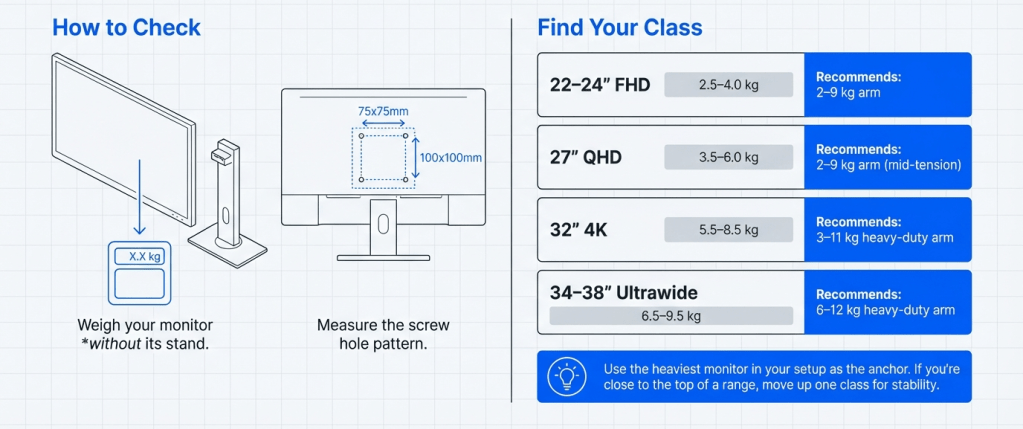
- Start with weight and VESA. Match each monitor’s actual weight without stand and VESA pattern (75×75 or 100×100 mm) to the arm’s rated range.
- Gas spring for daily motion; fixed pole for set-and-forget. Gas-spring arms shine when you reposition often; pole/crossbar mounts maximize stability and alignment.
- Alignment is geometry, not luck. For dual/triple, look for independent tilt/rotation, micro-adjust at the joints, and a crossbar that keeps bezels co-planar.
- Cable discipline = visual calm. Use integrated raceways, service loops, and a vertical cable spine so height changes never tug ports.
Mount Types for Dual & Triple Screens
| Mount style | Best for | Pros | Cons |
|---|---|---|---|
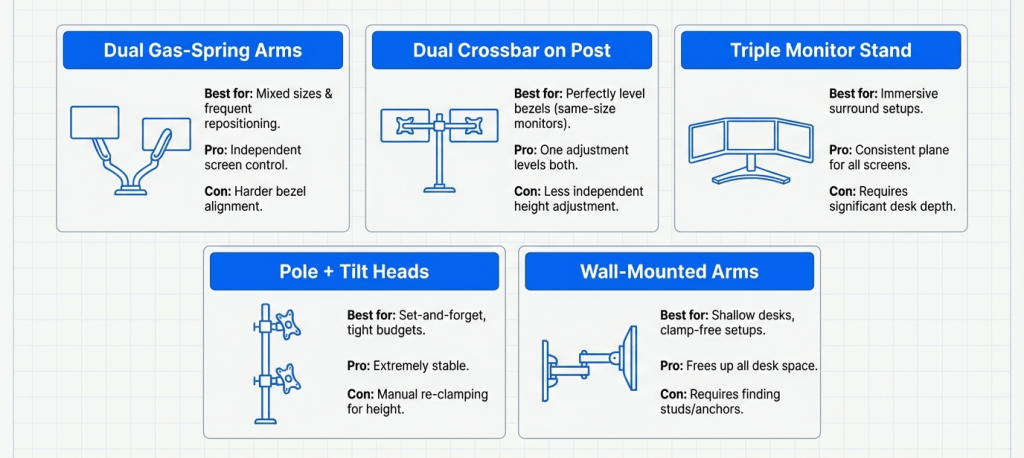
| Dual gas-spring arms (independent) | Mixed sizes; frequent re-positioning | Smooth height/tilt/rotate per screen; easy portrait/landscape | Harder to get perfect bezel alignment; requires tuning |
| Dual crossbar on a single post | Perfectly level bezels; same-size monitors | One adjustment levels both; clean centerline | Less independent height; heavier bar can reduce reach |
| Triple monitor stand (crossbar + wings) | Surround/immersive setups | Consistent plane; simple alignment | Desk depth needed; heavier payload |
| Pole + tilt heads (non-gas) | Set-and-forget, tight budgets | Very stable; fewer moving parts | Limited vertical micro-moves; manual re-clamping |
| Wall-mounted arms | Shallow desks, clamp-free | Frees desk entirely; huge range | Requires proper studs/anchors; plan cable runs |
Load Classes & When to Upgrade the Arm
Use the heaviest monitor in your pair/trio as the sizing anchor. If you’re close to the top of a range, move up one class.
| Screen size (typical) | Typical weight (no stand) | Recommended arm class (per screen) |
|---|---|---|
| 22–24″ FHD | 2.5–4.0 kg (5.5–8.8 lb) | 2–9 kg (4.4–19.8 lb) gas-spring or pole |
| 27″ QHD | 3.5–6.0 kg (7.7–13.2 lb) | 2–9 kg gas-spring (mid setting) |
| 32″ 4K | 5.5–8.5 kg (12–18.7 lb) | 3–11 kg heavy-duty gas-spring |
| 34–38″ ultrawide | 6.5–9.5 kg (14–21 lb) | 6–12 kg heavy-duty or crossbar |
| Triple (3×24–27″) | 8–15 kg total (17–33 lb) | Triple crossbar or dual + single mix, rated for combined load |
Tip: Gas springs need preload tuning. After mounting the screen, turn the tension screw until it “floats”—neither rising nor sinking.
Gas-Spring vs. Mechanical/Pole: Which is Right?
| Factor | Gas-spring arms | Pole/crossbar systems |
|---|---|---|
| Daily adjustability | Excellent (height/tilt/rotate on the fly) | Moderate (height via clamp, tilt/rotate per head) |
| Alignment precision | Good, requires fine joint tuning | Excellent, especially with a crossbar |
| Stability at max reach | Good if sized correctly | Very good (less bounce) |
| Setup complexity | Moderate (tension + joint balance) | Low–moderate (more parts, fewer springs) |
| Cost | Mid to high | Budget to mid |
| Best use case | Designers, devs, analysts who move screens | Traders, editors, gamers who prioritize alignment |
Geometry for Perfect Dual/Triple Alignment
- Center the primary display on your keyboard and body line.
- Angle the wings (dual/triple) 10–30° inward so your eye moves more than your neck.
- Keep top edges level; aim the center of each panel ~10–20° below eye line for neutral gaze.
- For ultrawide + side panel, mount the ultrawide centered; keep the side panel slightly lower or angled to reduce neck rotation.
Cable Management & Desk Fit
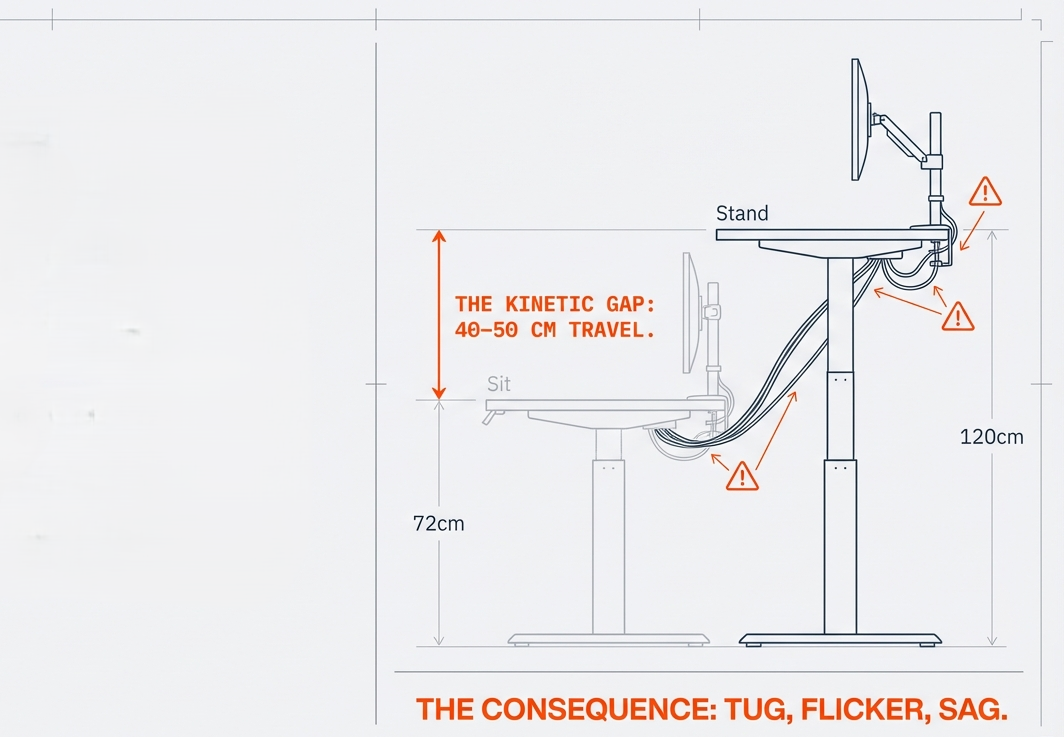
- Route power + signal through the arm’s channels; leave service loops so vertical moves don’t tug ports.
- Use a cable spine down to a PD/USB-C hub or under-desk power strip to avoid snags that trigger collisions or reposition drift.
- On sit-stand desks, ensure full height travel with no cable tautness at max lift.
PrimeCables Picks

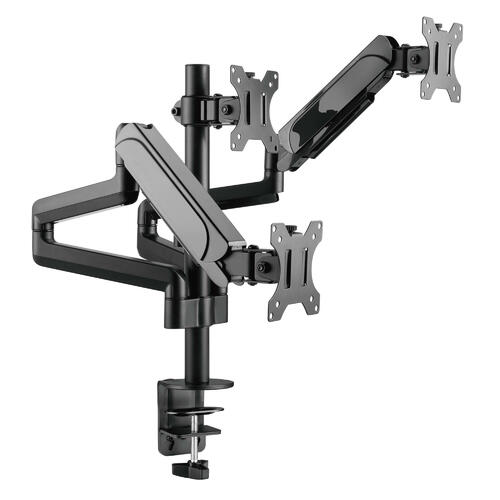

- Independent dual gas-spring arms for mixed 24–27″ panels: look for VESA 75/100, per-arm 2–9 kg, full 75+° tilt, and ±90° rotation.
- Triple monitor arm for 3×17–27″: shared leveling, micro-tilt heads, and heavy steel base for damping.
- Heavy-duty single arm for 32″–34″ ultrawide: 6–12 kg capacity, long reach, reinforced tilt pivot.
PrimeCables typically includes a bolt-through kit in addition to clamps, helpful for shallow sit-stand desks. Hardware packs are labeled, and most models publish exploded diagrams—useful for facilities teams rolling out identical bays.
Desk Depth & Arm Reach
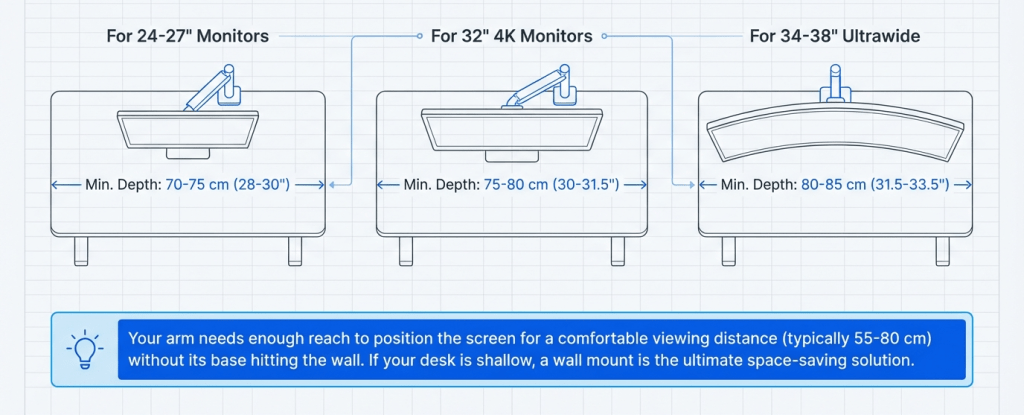
| Monitor type | Comfortable viewing distance | Minimum desk depth with arm | Notes |
|---|---|---|---|
| 24–27″ standard | 55–70 cm (22–28″) | 70–75 cm (28–30″) | Arm should place screen centerline ~10–20° below eye level |
| 32″ 4K | 60–75 cm (24–30″) | 75–80 cm (30–31.5″) | Heavy-duty tilt joint prevents sag |
| 34–38″ ultrawide | 60–80 cm (24–31″) | 80–85 cm (31.5–33.5″) | Consider wall mount if desk is shallow |
| Triple 3×24–27″ | 60–70 cm (24–28″) | 80–90 cm (31.5–35.5″) | Crossbar reduces bezel “step” between panels |
Quick Setup: From Box to Perfect Alignment
- Measure VESA & weight (monitor only).
- Choose clamp or bolt-through based on desk lip and depth.
- Mount center post directly behind keyboard centerline.
- Attach heads/arms and set rough height.
- Hang monitors (one at a time), then tension gas springs until they float.
- Level bezels using micro-tilt and rotation.
- Route cables through channels; add service loops; tie to a cable spine.
- Final pass: sit, adjust to 10–20° downward gaze, angle wings inward, and lock joints.
Troubleshooting
- Monitor droops → Add tilt friction; increase gas-spring tension a quarter-turn.
- Bezel height mismatch → Use micro-tilt on the higher panel; re-seat on the VESA plate if needed.
- Arm hits wall → Flip the elbow orientation or slide the base forward; consider wall mount.
- Vibration when typing → Shorten reach, lower height slightly, or switch to a crossbar style.
- Ports tug when lifting desk → Add cable slack; re-route through spine; use longer leads.
FAQ
Q1: Gas-spring or crossbar for a triple monitor setup?
For perfect alignment and fewer vibrations, a triple crossbar wins. If you move panels often, consider dual gas-spring + single (center fixed, wings flexible).
Q2: Can one dual arm hold two different sizes?
Yes—if both weights fall within the arm’s range and you can independently adjust tilt/rotation. Expect some extra tuning.
Q3: Is wall mounting better than a desk clamp?
It frees desk space and adds reach, but you’ll need proper studs/anchors and a plan for in-wall or raceway cable routing.
Q4: Do I need a heavy-duty arm for a 32″ 4K?
Usually yes. Many 32″ panels exceed 6 kg; pick an arm with headroom (e.g., up to 9–12 kg) to prevent sag.
Q5: Where does PrimeCables fit for Canadian buyers?
It’s a practical choice with clear, data-rich spec sheets and widely available spare hardware—handy for matching loads, VESA, and reach across multi-desk rollouts.